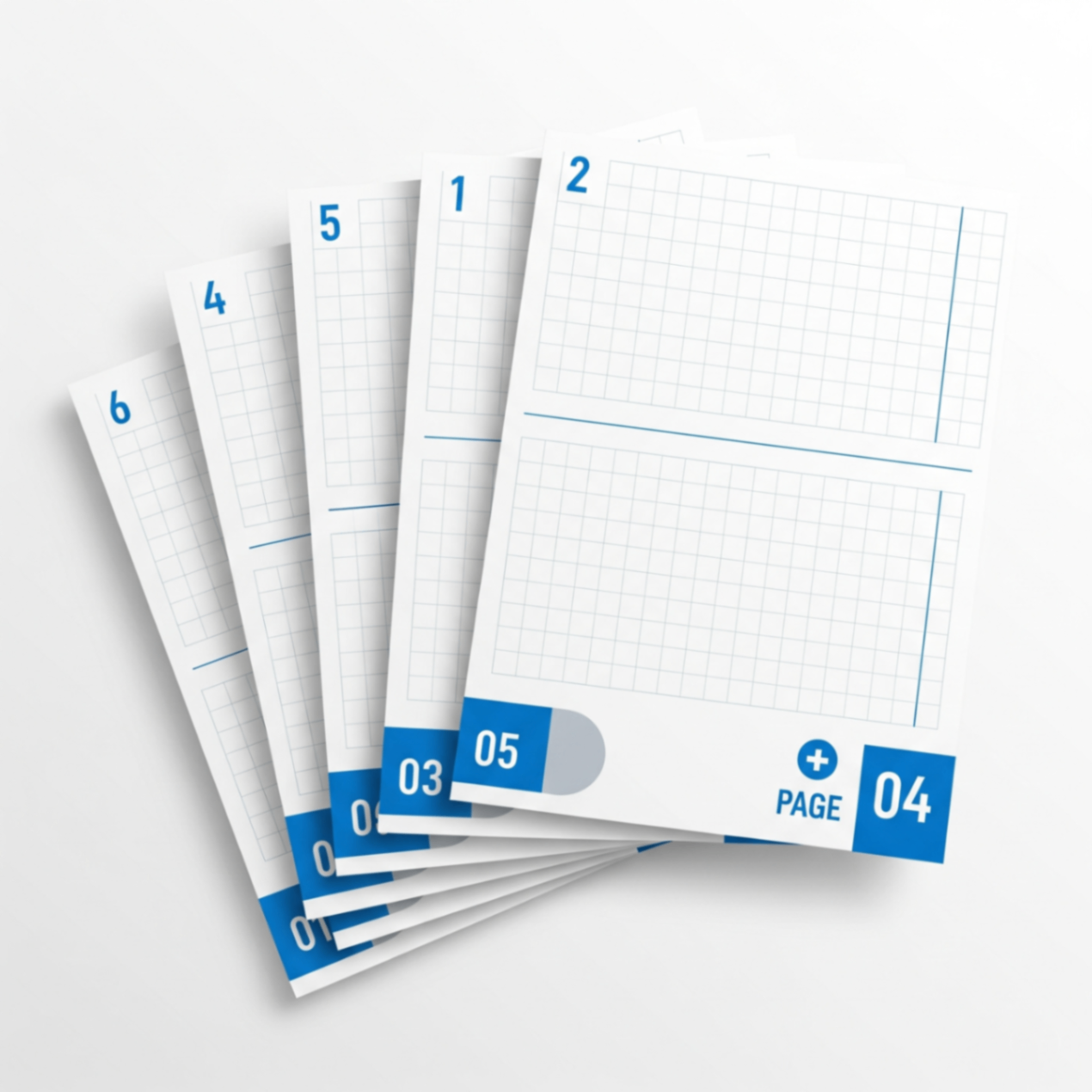
In document creation, the small details often make the biggest impact. Adding page numbers to your PDF is a simple step that instantly elevates it from a simple file to a professional, easy-to-navigate document. It's the mark of quality for reports, eBooks, legal contracts, and academic papers.
This guide will not only show you how to add page numbers for free but also how to customize them for a polished, professional look that suits your specific document type.
Why Professional Page Numbering Matters
- Effortless Navigation: It allows readers to easily reference specific pages and find their way through long documents.
- Enhanced Credibility: Proper formatting shows attention to detail and respect for the reader's time.
- Document Integrity: For contracts or formal reports, numbered pages confirm that the document is complete and no pages are missing.
How to Add & Customize Page Numbers Online
You don't need to be a design expert or own expensive software. Modern online tools give you complete control over your page numbering, allowing for a professional finish in seconds.
Tips for a Professional Look:
- Choose the Right Position: Most tools let you select the position (e.g., top-right, bottom-center). Bottom-center is a classic, unobtrusive choice for most reports and books.
- Select a Clear Format: You can often choose between a simple number (e.g., "7") or a more descriptive format (e.g., "Page 7 of 20"). The latter is excellent for clarity, as it instantly tells the reader the document's total length.
- Skip the Title Page: Professional documents often start numbering on the second or third page. Look for an option to define a "page range" to exclude your cover page from the count.
Add Professional Page Numbers in Seconds
The FlowFix Add Page Numbers tool offers the flexibility you need. Easily choose the position and format to match your document's style. It's the fastest way to get a professional result, completely free.