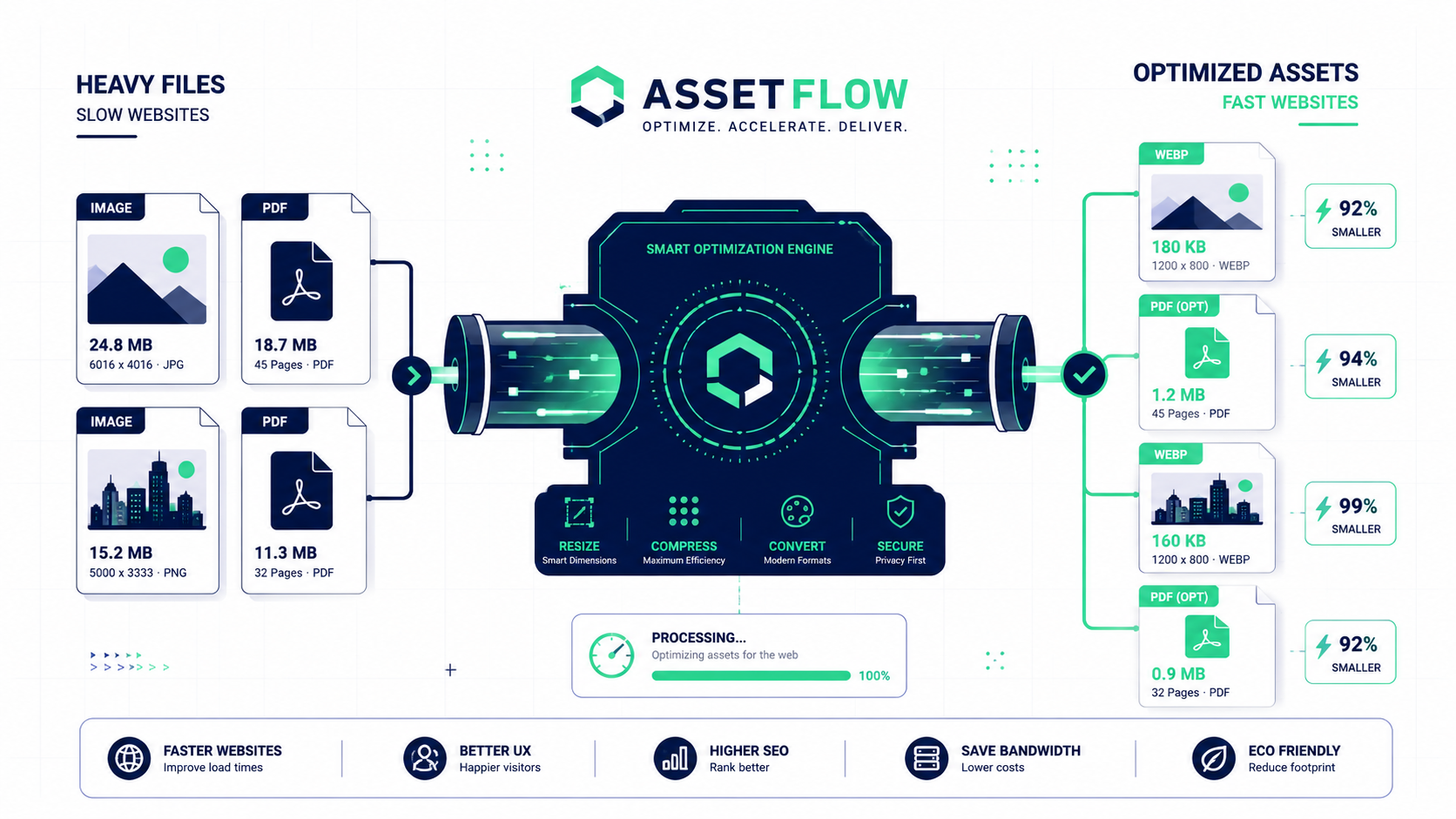
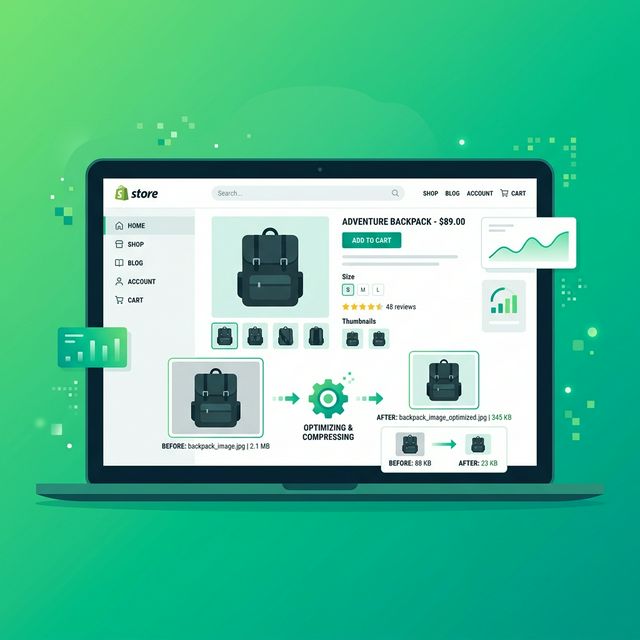
Shopify is an excellent platform for running an online store, but it does not automatically optimize the images you upload. If you upload a 4MB product photo straight from your camera, that 4MB file is what your customers download when they visit your product page. On a slow mobile connection, that is the difference between a sale and an abandoned session.
This guide covers everything you need to know about preparing product images for Shopify: the right dimensions, the right file size targets, and a straightforward workflow that takes less time than you might expect.
Why Shopify Store Speed Matters for Sales
Shopify's own research has found that every 100ms improvement in page load time increases conversion rates by about 1 percent. More importantly, Google's Core Web Vitals metrics now directly influence how your store appears in search results. A slow store does not just lose conversions from direct visitors: it also gets lower organic search rankings to begin with.
For most Shopify stores, unoptimized product images are the single biggest contributor to slow page load times. The good news is that fixing this is entirely within your control.
The Two Types of Compression
When you compress a product image, you have two approaches. Understanding the difference helps you choose the right setting in the FlowFix Image Compressor:
1. Lossless Compression
Reduces file size without removing any image data. The full quality is preserved. File savings are smaller: typically 10 to 30 percent.
Best for: Product images with fine detail like jewelry, electronics, or text-heavy labels.
2. Lossy Compression
Intelligently removes image data the human eye does not detect. File savings are much larger: commonly 50 to 80 percent: with no visible quality difference on screen.
Best for: Photographs, lifestyle product shots, and hero banner images.
Key Takeaway: For most Shopify product photos, a slight amount of lossy compression delivers the best balance between file size and visible quality.
File Size Targets by Image Type
- Product images: Under 200KB. Under 100KB for simple products with flat backgrounds.
- Collection images: Under 150KB.
- Hero and banner images: Under 400KB.
- Blog images: Under 200KB.
- Logo: Under 50KB. SVG is ideal if your logo works in vector format.
What About Shopify’s Built-In Image Optimization?
Shopify does compress images automatically on upload and serves them through a CDN. However, it can only work with what you give it. Starting with a well-optimized source image gives Shopify better material and produces better results than relying entirely on its automatic processing.
Shopify also does not crop or resize your images to fit how they are displayed. If you upload a 4000 x 3000px landscape photo into a slot that shows a 1024 x 1024px square, Shopify serves the full oversized file and lets CSS handle the visual crop. Your customers still download every unnecessary byte.
Optimize Your Shopify Images Before Uploading
Crop, resize, compress, and convert your product images for free. No account, no watermarks, no uploads to any server. Works entirely in your browser. Start with the FlowFix Image Compressor.
Frequently Asked Questions
How do I check if my Shopify images are slowing down my store?
Run your store URL through Google PageSpeed Insights or GTmetrix. Both tools show a breakdown of what is slowing your page and specifically call out oversized or unoptimized images. They also estimate how much load time you would save by optimizing them.
Should I replace all my existing Shopify product images?
Start with your highest-traffic pages. Check your Shopify analytics to find the products and collections that get the most visits, optimize those first, and work down from there. Prioritizing your most-visited pages gives you the fastest return.
Will compressing images affect how they look in my store?
When done correctly, no. Smart compression removes only data the human eye does not detect. A 4MB image compressed to 200KB looks identical on screen. The difference is only in the file size, not the visual quality your customers experience.
Conclusion
Image optimization is one of the highest-leverage improvements you can make to a Shopify store. Faster pages rank better, load better on mobile, and convert at higher rates. The process is straightforward: crop, resize, compress, convert. FlowFix gives you free tools for every step, right in your browser, with nothing uploaded to any server.